目录
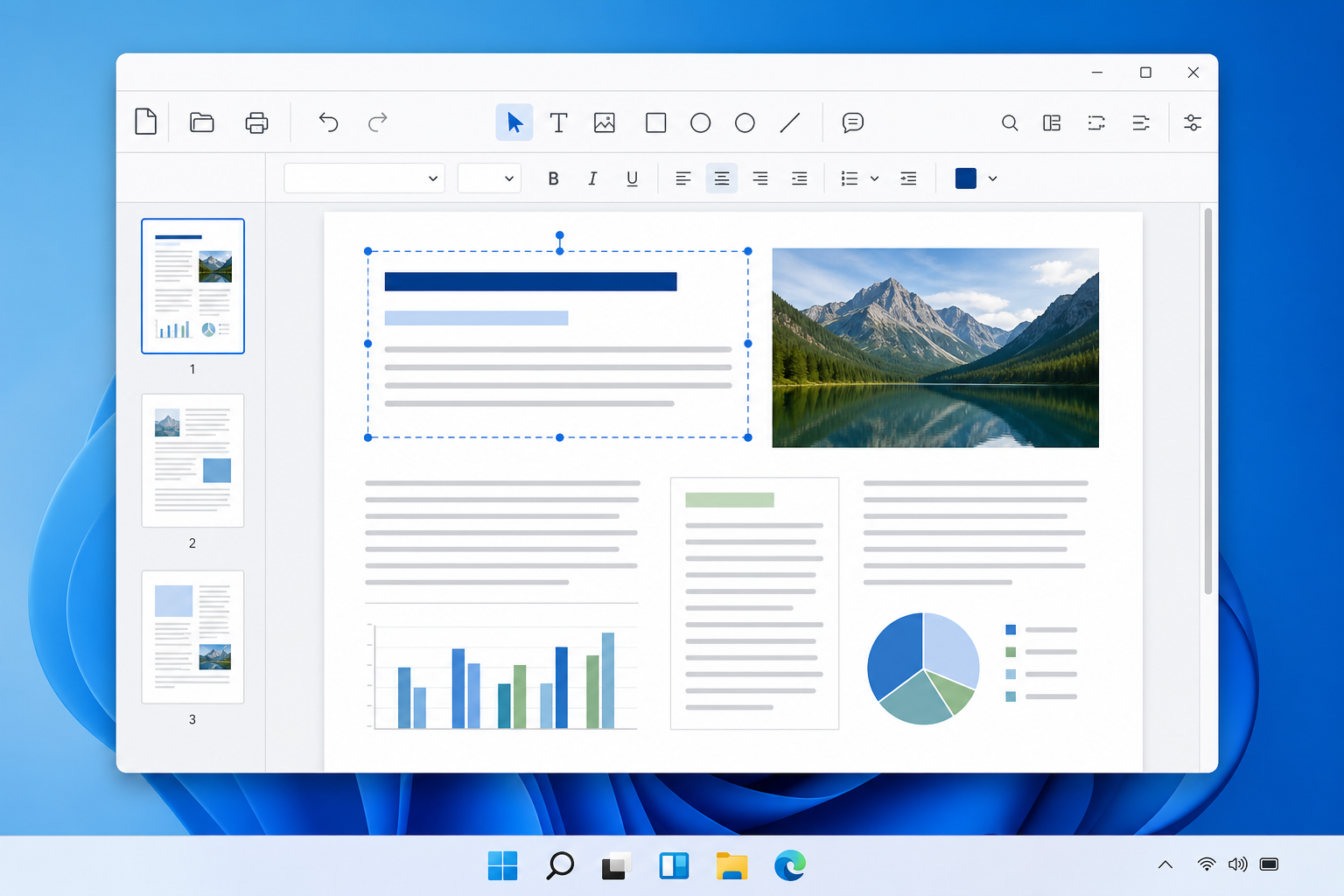
To edit a PDF in WPS Office on Windows, open the file in WPS PDF, choose Home > Edit Content, then select the text, image, shape, or other page element you need to change. When you finish, exit editing and use Save As if you want to protect the original file. If the PDF is a scan and its text cannot be selected, run OCR first; scanned pages are usually image-based rather than editable text. This guide focuses on the Windows desktop workflow because its editing path is documented by WPS. Menus, access requirements, and available tools can differ on other platforms.
At a glance: choose the right PDF editing route
| Your situation | Best next step |
|---|---|
| You need to correct normal selectable text or move an object. | Open the PDF and use Home > Edit Content. |
| You cannot select words because the page is a scan. | Run Edit > OCR PDF, then edit the recognized text. |
| You only want to add feedback, not alter the original wording. | Use comments or markup instead of content editing. |
| You need to preserve the source document. | Use Save As and work from a new copy. |
Before you start
- Use WPS Office for Windows and open the PDF in its PDF workspace.
- Make a backup copy before changing contracts, forms, invoices, or other important files.
- Check that your account has access to PDF content editing. WPS documentation identifies PDF content editing as a membership-related feature.
- If WPS Office is not installed yet, see this WPS Office download and setup guide. Windows users who prefer the Microsoft Store can also follow the WPS Office Microsoft Store installation guide.
Edit a PDF in WPS Office step by step
1. Open the PDF in WPS PDF
Launch WPS Office and open the PDF you want to revise. Wait for the page to load in the main document area, then go to the page containing the content you need to change.
2. Enter content editing mode
Select Home > Edit Content. This switches the PDF from viewing mode to content-editing mode. If clicking an item only selects or views it, confirm that Edit Content is enabled first.
3. Select and revise the item
Click the text, image, shape, or other supported page element. Make the required change, then click another area to review the result. Keep edits small and review nearby line breaks, spacing, and alignment after each change.
4. Exit editing and save a separate copy
Choose Exit Editing when you are done. For an important original, use File > Save As, choose a new file name and folder, and save the revised PDF. Saving as a new file lets you compare the edited version with the source later.
Example: correcting a date without replacing the original
Example scenario: A meeting handout contains an incorrect date in a selectable text line. Open the PDF, enter Edit Content, replace only the date, exit editing, and save the result as meeting-handout-revised.pdf. Reopen the new file and check the edited line, the page layout, and the surrounding text before sharing it.
What to do with a scanned PDF
A scanned PDF often stores each page as an image. In that case, text may not be selectable in Edit Content. On Windows, choose Edit > OCR PDF, select the page range and recognition language, and start recognition. After OCR finishes, use Edit Content to revise the recognized text.
Review names, numbers, dates, punctuation, and unusual formatting carefully after OCR. Recognition quality can be affected when the scan is blurry, tilted, low-contrast, or set to the wrong language.
Check the finished PDF before sharing
- Reopen the saved copy rather than relying only on the editing view.
- Confirm that each changed text block is readable and not overlapping another item.
- Check page breaks, images, signatures, and form fields around the edit.
- Verify key facts such as dates, amounts, names, and reference numbers against the source.
- Keep the original file until the revised version has been reviewed or approved.
If you regularly use keyboard navigation while reviewing documents, this WPS Office keyboard shortcuts reference may help you work through long files more efficiently. For a broader visual learning path, see the WPS Office video tutorial guide.
Common PDF editing problems
Why can’t I edit text after clicking it?
First, select Home > Edit Content. Then check whether the account has PDF editing access. If the text still cannot be selected, the page may be scanned or image-based; use OCR before trying again.
Why does the OCR result contain errors?
Choose the recognition language that matches the document, use the clearest available scan, and manually review the recognized output. Pay particular attention to character pairs that look alike, decimal points, dates, and proper names.
Why won’t WPS save my changes?
Check whether the PDF is open in another reader, editor, or sync tool. Close any application that may be using the file, then try again. If saving still fails, use Save As with a new name or a different folder.
Should I edit the content or add a comment?
Use Edit Content when the PDF itself must be corrected. Use comments or markup when you want to suggest changes, highlight an issue, or preserve the original wording for another person to review.
FAQ
Can I edit images in a PDF with WPS Office?
In Windows PDF editing mode, WPS documentation states that you can select supported page elements, including images, to modify them. The precise options available can depend on the object and the file structure.
Can I edit a PDF on Mac, mobile, or in a browser?
WPS provides PDF tools across several environments, but the exact interface and feature access can vary. This article does not assume that the Windows menu path applies to macOS, mobile, or web versions.
Will OCR make every scanned PDF perfect?
No. OCR turns image-based text into editable text, but the recognized result should always be checked against the page image before you rely on it.
验证情况与使用说明
本文依据相关品牌的官方帮助资料整理。具体功能入口、规则名称和可选样式可能随系统、地区、账号与版本变化,请以当前客户端或官方页面显示为准。本页为第三方使用教程,并非相关品牌的官方帮助页面。